Use Cherry Studio with Models Hub: Add a Provider and Models
Add Models Hub as a custom provider in Cherry Studio, fill in the API key and API host, then chat with Claude, GPT and more, with verification and error troubleshooting.
Cherry Studio is a desktop AI assistant client that can connect to several model providers at once and switch between them in one interface. Add Models Hub as a custom provider and Cherry Studio's chats and multi-role assistants will use your Models Hub balance for whichever model you pick. This page covers the connection only, not how to use Cherry Studio itself.
Three things you need
A Models Hub API key, the base URL https://modelsok.com, and a model name.
Prerequisites
- Cherry Studio installed. If not, download it here.
- A Models Hub API key from the Tokens page, in a group that can access the models you want.
Recommended models
| Use case | Model | Pricing | Live status |
|---|---|---|---|
| Everyday chat, best balance of speed and quality | claude-sonnet-4-6 | Price | Availability and latency |
| Complex reasoning and long context | gpt-5.5 | Price | Availability and latency |
| Cheap and fast, good for everyday questions | gpt-5.4-mini | Price | Availability and latency |
Model names are authoritative on the pricing page.
Setup
Option 1: one-click fill from the Tokens page (if available)
Some Models Hub sites add a "Shortcut Key" dropdown next to each token on the Tokens page. Choosing Cherry Studio there opens a cherrystudio://providers/api-keys?... deep link that a locally installed Cherry Studio picks up and uses to fill in the API key and address automatically. Whether this option appears depends on a site-level setting — go by what you actually see on your Tokens page. If it's not there, use the manual setup below.

Option 2: add the provider manually
-
Open Cherry Studio, go to Settings → Model Provider, and click + Add at the bottom to create a new provider.
-
Turn the provider on and paste your Models Hub API key into API Key.
-
Enter the following in API Host:
https://modelsok.comDon't append
/v1yourself — the Preview text under the field shows the full path Cherry Studio builds (e.g. ending in/v1/chat/completions). Click Check next to it to verify the connection.
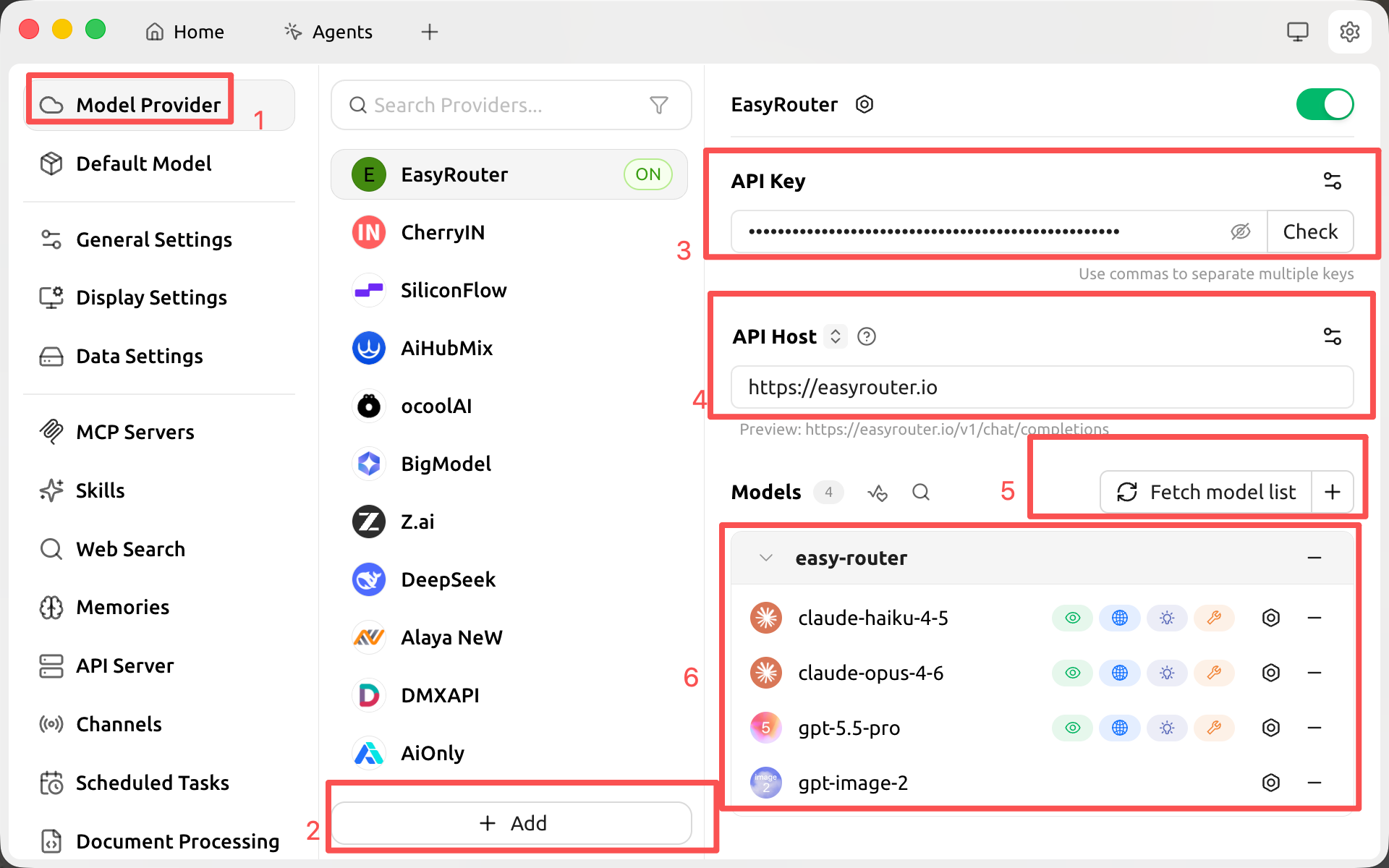
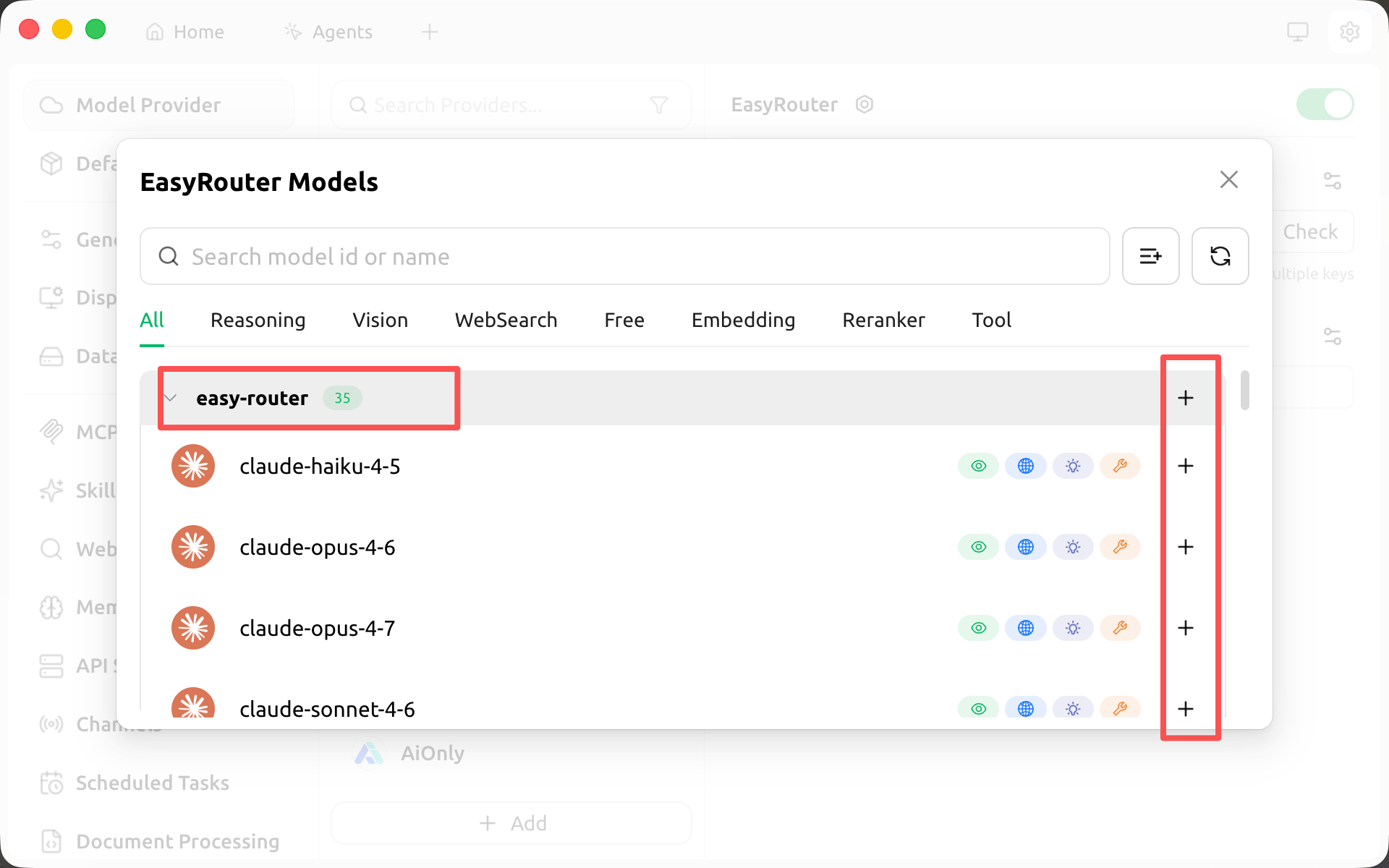
- In the Models section, click Fetch model list, or click + to add the model names above by hand, then enable them in the list.
Verify
Back in the chat view, pick the model you just added from the dropdown and ask "describe this project in one sentence". A normal reply means you're connected. Then check Usage logs in the Models Hub console — a request under that model name shows up within seconds, confirming traffic went through Models Hub.
Common errors
| Symptom | Cause | Fix |
|---|---|---|
| Clicking Check reports a connection failure | Wrong API Host, or a stray /v1 at the end | Enter only https://modelsok.com and let Cherry Studio build the path |
401 / invalid API key | Key copied incompletely, or the token is disabled | Re-copy from the Tokens page |
| Model missing from the dropdown / request says model not found | Misspelled model name, or the token's group can't access it | Check the name on the pricing page |
Slow replies or 429 | Rate limited, usually too much concurrency | Retry shortly; contact support for a higher limit if it persists |
| No entry in usage logs | The chat is using a model from a different provider | Check the model dropdown and confirm it's under the provider you just configured |
More in Troubleshooting.
FAQ
How is it billed? Per input and output token actually consumed, at the price on each model's pricing page; usage logs itemize every request.
How is this different from calling the vendor's API directly? The request format inside Cherry Studio is the same; only the address changes. One key lets you switch between Claude, GPT and other models under the same provider.
How do I switch models? Pick a different model from the dropdown at the top of the chat window, or adjust the enabled model list on the Model Provider page.
Related
- CLI one-command setup: faster for terminal-based tools
- Model pricing and model status
- Cursor setup, Claude Code setup
Use CC Switch with Models Hub: One-Click Import from Tokens
Import configuration into CC Switch with one click from the Models Hub token dropdown, writing straight into Claude Code, Codex, or Gemini CLI, with verification and error troubleshooting.
Use Chatbox with Models Hub: API Host and Key Setup
Add an OpenAI API-compatible model provider in the Chatbox desktop client, enter your Models Hub API host and key, and call Claude, GPT and more with one key, with verification and troubleshooting.