Use FluentRead with Models Hub: Custom Translation Engine Setup
Point the FluentRead browser extension's translation engine at Models Hub, enter your key and endpoint, and translate pages on your Models Hub balance, with recommended models and error fixes.
FluentRead is an open-source browser translation extension with side-by-side bilingual display, selection translation, and full-page translation. It has a built-in AI translation engine; point that engine at Models Hub and every translation request from the extension draws on your Models Hub balance. This page covers only the connection step — see the official project page for how to use the extension itself.
Three things you need
A Models Hub API key, the endpoint https://modelsok.com (no /v1), and a model name.
Prerequisites
- The FluentRead extension installed. Chrome users can get it from the Chrome Web Store (or a domestic mirror); Edge users from the Edge Add-ons Store; Firefox users from Firefox Add-ons. Project page: GitHub.
- A Models Hub API key from the Tokens page, in a group that can access the models you want.
Recommended models
Page translation generates a lot of frequent requests, so model choice directly affects cost — start with something cheap and fast; switch to a stronger model for technical documents where accuracy matters more.
| Use case | Model | Pricing | Live status |
|---|---|---|---|
| Default for everyday page translation, fast | gpt-5.4-mini | Price | Availability and latency |
| Cheap and fast, alternative | claude-haiku-4-5 | Price | Availability and latency |
| Technical documents or long text needing accuracy | claude-sonnet-4-6 | Price | Availability and latency |
Model names are authoritative on the pricing page.
Setup
Option 1: One-click fill from the Tokens page (if available)
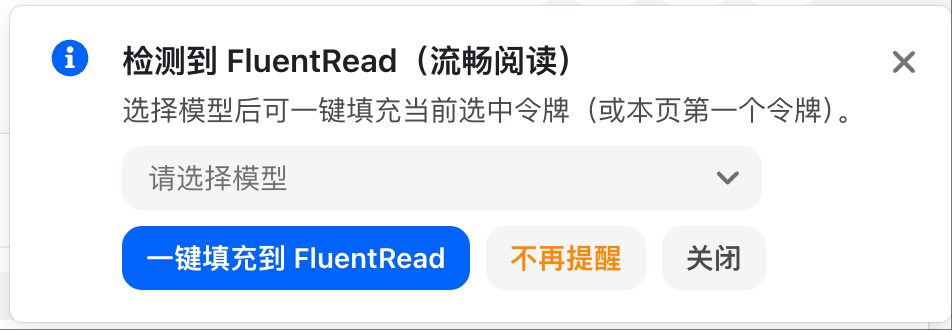
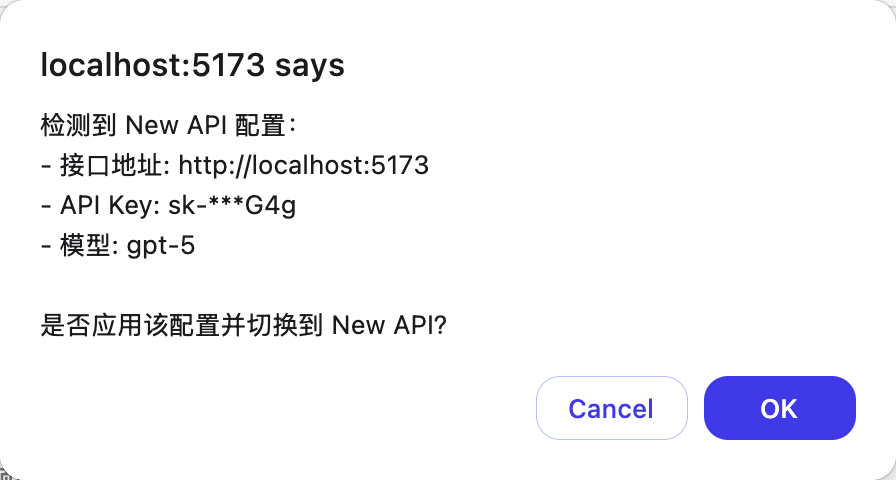
Some Models Hub sites show a shortcut next to each token on the Tokens page that jumps to FluentRead; pick a model and it fills the extension's settings in one click, with a confirmation dialog to check the values. Whether this shows up depends on a site-level setting — go by what you actually see, and use manual setup below if it's not there.
Option 2: Manual setup
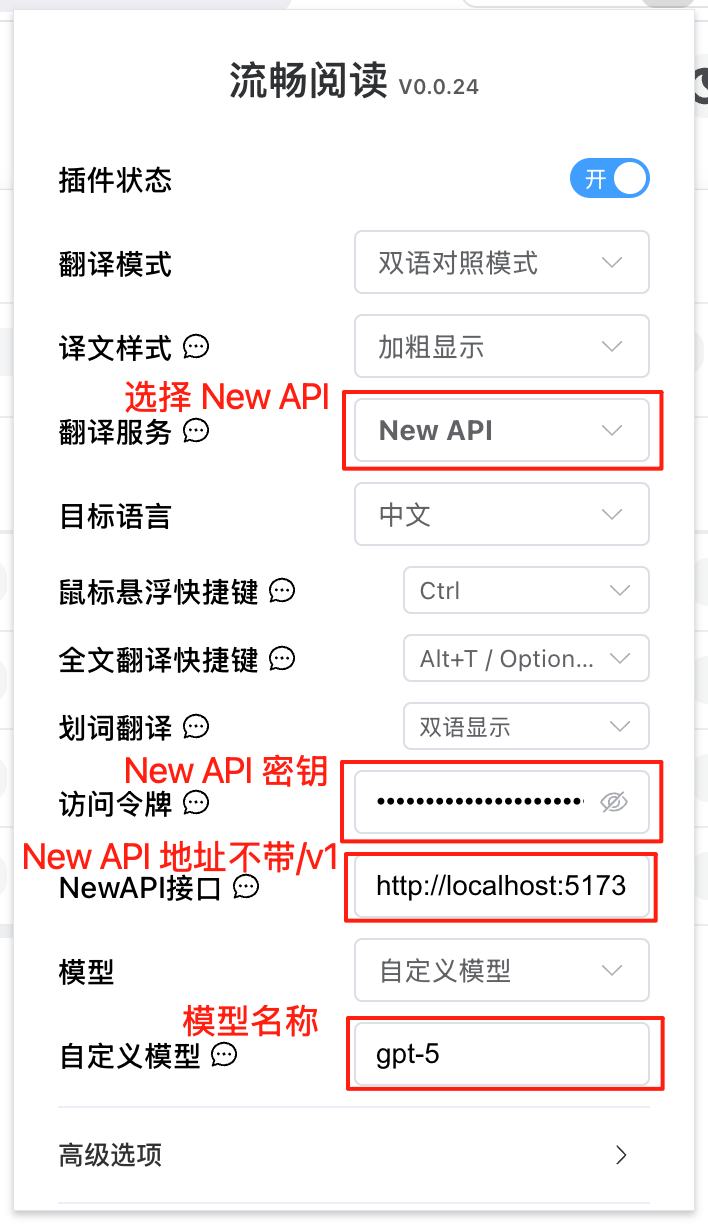
Open FluentRead's settings page (click the extension icon in your toolbar) and fill in:
| Field | What to enter |
|---|---|
| Translation service | Models Hub (some versions show this as "Custom" or "OpenAI-compatible") |
| Access token | Your Models Hub API key |
| Endpoint | https://modelsok.com, without /v1 — the extension appends the path itself |
| Model | Pick from the list, or choose "Custom model" and enter one of the model names above |
Verify
After saving, open any non-English page and select some text to trigger selection translation, or use the floating button for full-page translation. Seeing the translated text means you're connected. Then check Usage logs in the Models Hub console; a request under that model name appears within seconds, confirming traffic went through Models Hub.
Common errors
| Symptom | Cause | Fix |
|---|---|---|
| Translation spins forever or fails with no result | Wrong endpoint, most often with an extra /v1 | Use https://modelsok.com without /v1 |
Invalid token / 401 | Incomplete key, or a disabled token | Re-copy from the Tokens page |
| Model not found | Misspelled custom model name, or the token's group can't access it | Check the spelling on the pricing page |
Many requests fail / 429 during full-page translation | The floating button fires a burst of concurrent requests | Retry later, or use selection translation for smaller chunks |
| Nothing shows in usage logs | The translation service isn't switched to Models Hub, or settings weren't saved | Reopen settings and confirm the service and all three fields are saved |
More in Troubleshooting.
FAQ
How is it billed? Per input and output token actually consumed per translation request, at the price on each model's pricing page. Full-page translation splits into several small requests; usage logs show the detail.
How is this different from using OpenAI's official endpoint directly? Same fields, just a different endpoint. You don't need to sign up for an OpenAI account.
How do I switch models? Go back to settings, change the model (or custom model) to another name from the table, and save.
Related
Use Open WebUI with Models Hub: Admin Panel Connections Setup
Connect self-hosted Open WebUI to Models Hub as an OpenAI-compatible connection under Settings, Admin, Connections, with URL and API key fields, verification, and error troubleshooting.
Use Immersive Translate with Models Hub: Custom AI Service Setup
Switch Immersive Translate's browser extension to a custom OpenAI service, enter your Models Hub URL and key, and translate web pages on your Models Hub balance, with verification and error fixes.